
Appearance
Getting started
TopView Blockout lets you sketch a level in Top View or Scene, then build editable blockout geometry.
Requirements
| Requirement | Supported version |
|---|---|
| Unity Editor | Unity 6.3 |
| Universal Render Pipeline | URP 17.3 |
| Package | com.dicenook.topview-blockout |
Add the package using the installation method provided with your copy of the tool, then open Tools > TopView Blockout > Open Editor. The supplied blueprint materials require URP. FBX export additionally requires Unity's optional FBX Exporter package; it is not needed to draw, build or export prefabs.
Authoring and geometry generation run in the Unity Editor. Author in Edit Mode; Scene editing and geometry builds require leaving Prefab Mode. The generated meshes can be used in your scene at runtime.
Explore an example
When no level is loaded, the start screen offers Create from an example, New empty level and Recent levels.
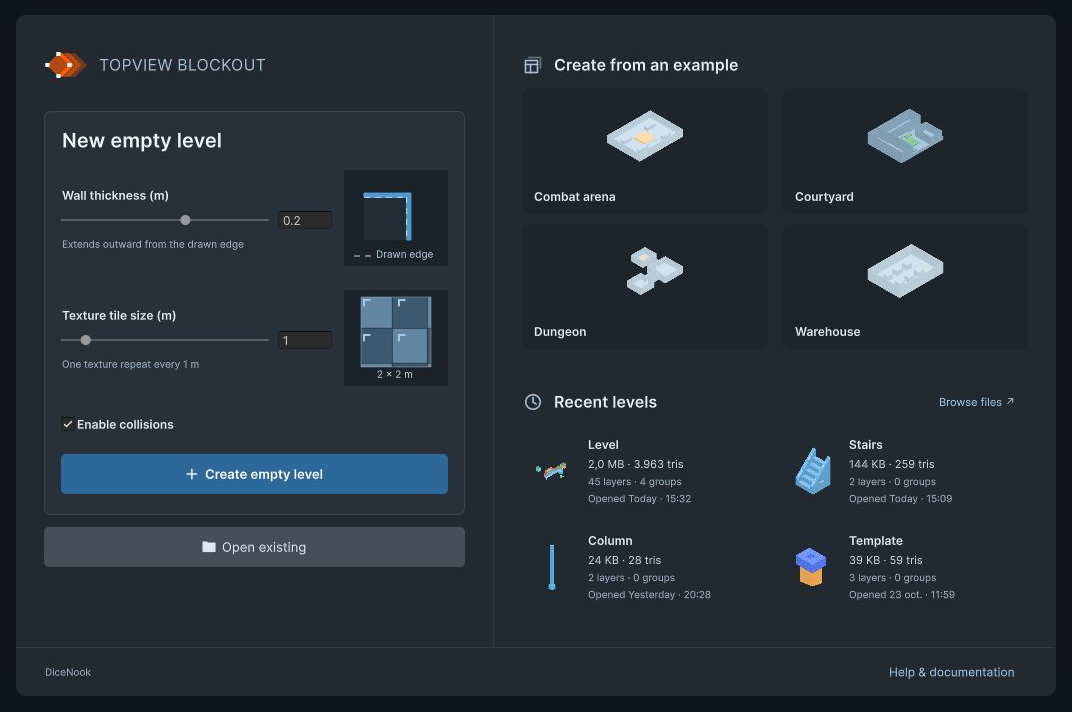
- Under Create from an example, click an example card.
- Choose a location inside Assets and save your editable copy.
- Explore the layout in Top View. Select a block to inspect its settings, or use Add to Scene to see its generated geometry in Scene.
Your copy is independent of the example, so you can experiment without modifying its source.
Create an empty level
- On the start screen, review Wall thickness (m), Texture tile size (m) and Enable collisions, then click Create empty level. Their initial values are 0.2 m, 1 m per texture repeat and collisions enabled.
- Save the new BlockoutAsset inside Assets.
If a level is already open, use Corner: TopView Blockout > New Level... in the editor's file menu. The asset stores the editable definition of your level. Open Variables in its toolbar to change Wall Thickness, Texture Size, the three default materials and the Mesh Collider Boolean. See Level defaults and variables for shared and local settings.
Draw your first block
- Choose
 Rectangle, or press B.
 - Click in Top View to place the first corner.
- Move the pointer to the opposite corner. Use Wheel while drawing to adjust the height.
- Click again to create the block.
New Add blocks use Solid mode. The drawing tool and Add/Subtract operation stay active so you can create another block. Press W for  Move, and choose
  Blocks 1 to move whole objects.
Add it to your scene
Click Add to Scene to build the geometry and create or reveal the scene object. Use Save in the file menu to build and save changes.
Asset and scene instance
Opening or building a BlockoutAsset does not create a scene object. Use Add to Scene, or drag the asset from the Project window into Scene, to create a linked instance.
The asset and scene have separate save operations: Save in TopView Blockout saves the level definition and attempts to rebuild its geometry; save the Unity scene to keep scene instances and their transforms. See Saving and exporting for Live builds, errors and output options.
Continue with Creating blocks, Editing blocks and Top View and Scene, or keep the Shortcuts page nearby while you work.