
Appearance
Level defaults and variables
Open Variables in the level toolbar to configure the current level. This panel replaces the separate Level Settings menu.
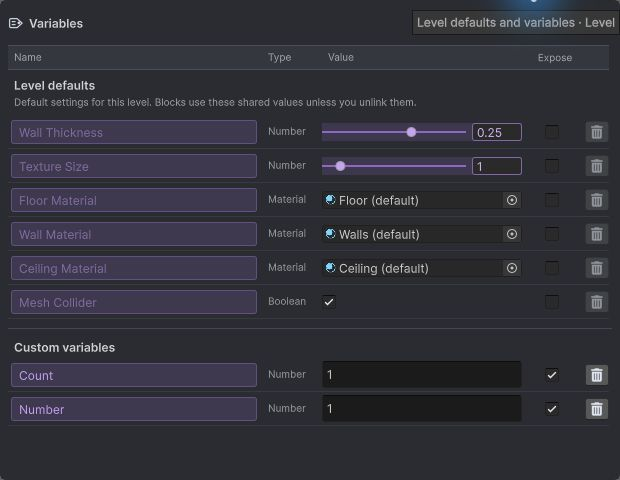
Level defaults
The Level defaults section contains the built-in variables. Their names are disabled because they identify fixed settings; their values remain editable. Custom variables appear in a separate section below.
| Variable | Type | Purpose |
|---|---|---|
| Wall Thickness | Number | Hollow wall thickness in metres. The slider ranges from −1 to 1; the minimum absolute thickness is 0.01 m. |
| Texture Size | Number | Metres covered by one texture repeat. The slider ranges from 0.01 to 10 m. Larger values make the texture appear larger without resizing geometry. |
| Floor Material | Material | Default floor material. |
| Wall Material | Material | Default wall material. |
| Ceiling Material | Material | Default ceiling material. |
| Mesh Collider | Boolean | Enables or disables the generated level's mesh collider. |
Positive Wall Thickness extends walls outward from the drawn edge; negative values extend them inward. Texture Size changes texture density rather than the editor grid or the level's dimensions.
Drag Wall Thickness or Texture Size to see a temporary illustration and explanation of the current value. The preview updates while dragging and disappears when the gesture ends. One Ctrl/Cmd + Z undoes the complete drag; Redo restores its final value. You can also enter a number beside either slider.
Shared fields and local values
Add blocks start linked to the level's default variables. Their material fields are always visible, including on a level that uses the supplied blueprint materials. There is no Custom materials toggle. Hollow blocks also show the Wall Thickness control.
A purple field and name tag identify a shared variable. Editing that field changes the variable and updates every consumer linked to it. This applies to thickness, texture size and material assignments.
- Click the tag's × to unlink one field and keep its current effective value locally.
- Edit the unlinked field to change that block's local value.
- Use the variable picker to link another variable, create one, or choose the corresponding built-in variable to inherit the level default again.
Material fields accept Material assets. Each surface can have its own shared or local material. Keep own materials remains a separate preference for overlapping Add blocks. Subtract blocks do not expose these settings.
Changes apply to editable selected blocks; locked blocks cannot receive local edits. A shared variable still affects every block that refers to it. Mixed values are indicated in the inspector. Assignment, linking and unlinking support Undo/Redo.
Custom variables
Use + > Number, + > Material or + > Boolean to create a custom variable. Rename it in Name and edit its typed Value field. Pickers list only compatible types, so a material cannot be assigned to Array Count.
Numbers support decimals and store literal values; expressions are not supported. Array Count rounds down and requires a result from 1 to 256. Material variables hold a Material asset; Boolean variables hold a true/false value.
Built-in variables cannot be renamed or deleted. Deleting a custom variable preserves its consumers' current values as local values and supports Undo.
Share an Array count
- Create a Number variable, such as
Columns, and give it a valid count. - Select the block or group and open its Array modifier.
- Use the variable picker beside Count to choose
Columns.
Link other Array counts to the same variable to change them together. Editing a linked count changes that shared Number; unlinking with × keeps the current count as a local value. See Modifiers for Array placement and limits.
Template instances
Enable Expose to make a source variable available in its template instances. Custom variables start exposed; built-in variables start hidden. An instance initially uses its source's value. An exposed field can use an independent value or a compatible variable from the containing level.
Editing a purple instance field updates its linked parent variable. Unlinking preserves its value; Template default restores the source value. Number, Material and Boolean values, bindings and exposure are preserved when saving or converting a group to a template. Shared source changes affect its instances; each instance can retain its own override.
Mesh Collider configures the generated level output as a whole. It does not create separate collision settings for individual blocks.
See Level Templates for placement, shared source editing and conversion from groups.